
What is my IP address? Your public IP address is the unique identifier your internet service provider (ISP) assigns to your home network. It’s how the rest of the internet sees you. Think of it like your home’s street address for online traffic.
Knowing your public IP address is crucial for various reasons, especially when you’re running smart home devices like those managed by Home Assistant. Whether you’re setting up remote access, troubleshooting network issues, or simply want to check my IP to see what’s my IP address is at any given moment, this guide will walk you through it, all within the context of your Home Assistant setup. We’ll delve into why it matters, how Home Assistant can help you detect public IP changes, and explore methods to pinpoint your router public IP and home network IP address.
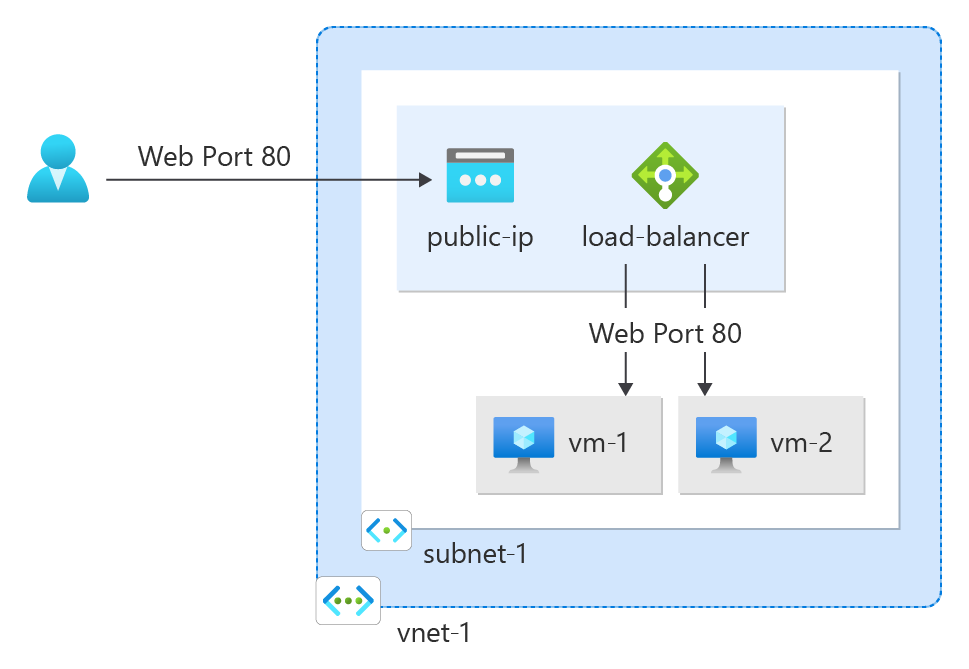
Image Source: learn.microsoft.com
Why Knowing Your Public IP Address Matters for Home Assistant
Your public IP address is the gateway for the outside world to connect to your home network. For Home Assistant users, this becomes particularly important for:
- Remote Access: If you want to control your smart home devices when you’re away from home, you’ll likely need to connect to your Home Assistant instance over the internet. This connection relies on your public IP address.
- Dynamic DNS (DDNS): Most residential internet connections have dynamic IP addresses, meaning your public IP can change periodically. DDNS services help you link a memorable domain name (like
myhome.duckdns.org) to your ever-changing public IP address. Home Assistant often integrates with DDNS providers to keep this link updated automatically. - Port Forwarding: To allow external devices to connect to your Home Assistant instance, you might need to configure port forwarding on your router. This directs specific incoming traffic (on a certain port) to your Home Assistant server’s local IP address. Knowing your public IP helps ensure you’re configuring this correctly.
- Troubleshooting: If you’re experiencing connectivity issues with your Home Assistant setup, knowing your current public IP can be a vital piece of information for diagnosing the problem. It helps confirm whether the issue lies with your internet connection, your router, or your Home Assistant configuration.
- Security: While not a primary security measure, being aware of your public IP can contribute to a broader understanding of your network’s exposure.
Public IP Location and Your Home Network
Your Public IP location isn’t a precise GPS coordinate; it’s generally tied to the geographic region of your ISP’s servers that provide your internet connection. This means if you check my IP while traveling, it will show the location associated with your home network’s IP, not your current location.
Understanding your home network IP address is also crucial. This is the private IP address assigned to your Home Assistant server (or any device on your local network) by your router. You’ll often use this internal IP to access Home Assistant when you’re at home, usually in the format 192.168.x.x or 10.0.x.x. The relationship between your home network IP address and your router public IP is that the router acts as a bridge, translating between the private IPs on your network and the single public IP address assigned by your ISP.
Methods to Find Your Public IP Address
There are several ways to discover your public IP address. Some methods are external to Home Assistant, while others can be integrated directly into your smart home dashboard.
1. Using External Websites (The Simplest Way)
The quickest and most straightforward way to find your current public IP address is to use a dedicated website. When you visit these sites from your home network, they automatically display your public IP.
- What is my IP address? Visit a site like:
whatismyip.comicanhazip.com(provides just the IP address)ipchicken.com
How it works: These websites see the incoming connection from your router and report the public IP address that initiated the request. This is an excellent way to quickly check my IP and verify your Public IP location as perceived by the internet.
2. Using Your Router’s Interface
Your router is the device that connects your home network to the internet and holds the public IP address assigned by your ISP. You can often find your public IP by logging into your router’s web administration panel.
How to Find Router IP:
-
Find your router’s IP address (Gateway IP):
- On Windows: Open Command Prompt (
cmd) and typeipconfig. Look for the “Default Gateway” under your active network adapter. This is usually your router’s IP. - On macOS: Go to System Settings > Network. Select your active connection (Wi-Fi or Ethernet) and click “Details.” You’ll find the router’s IP under the “Router” field.
- On Linux: Open a terminal and type
ip route | grep default. The IP address following “default via” is your router’s IP.
- On Windows: Open Command Prompt (
-
Access the Router’s Web Interface:
- Open a web browser and type your router’s IP address (e.g.,
192.168.1.1or192.168.0.1) into the address bar. - You’ll be prompted for a username and password. These are usually found on a sticker on the router itself or in its manual. Common defaults include “admin” for both username and password, but it’s best to check your specific router model.
- Open a web browser and type your router’s IP address (e.g.,
-
Locate the WAN or Internet Status:
- Once logged in, navigate through the router’s menus. Look for sections labeled “WAN,” “Internet,” “Status,” “System,” or “Network.”
- Your public IP address will typically be displayed in this section, often labeled as “Public IP Address,” “WAN IP Address,” or “Internet IP Address.”
This method directly shows your router public IP, which is the same as your public IP address. It’s a reliable way to detect public IP if you’re comfortable with router settings.
3. Using Home Assistant Integrations
Home Assistant offers several ways to actively monitor and display your public IP address directly within your dashboard. This is invaluable for automation and for always having your IP readily available.
3.1. The ipify Integration
The ipify service is a simple and widely used method for retrieving your public IP. Home Assistant has a built-in integration for it.
How to Set it Up:
- Navigate to Settings: In your Home Assistant dashboard, go to
Settings>Devices & Services. - Add Integration: Click the
+ Add Integrationbutton in the bottom right. - Search for
ipify: Typeipifyinto the search bar and select it. - Configuration: The
ipifyintegration usually doesn’t require any complex configuration. It will automatically discover your public IP address. - Entities: Once added,
ipifywill create a sensor entity, typically namedsensor.ipify_public_ip_address. You can add this sensor to your dashboard to see your IP.
This integration is a great way to detect public IP changes automatically and display them. It’s a core component for many who need to check my IP from within Home Assistant.
3.2. The external_ip_tracker Integration
This integration is more robust and can track your public IP address from multiple sources, offering redundancy and a higher degree of certainty.
How to Set it Up:
-
Add to
configuration.yaml: You’ll typically need to add this integration manually to yourconfiguration.yamlfile.
“`yaml
# configuration.yamlexternal_ip_tracker:
# You can specify multiple providers
# ipify is a common and reliable choice
# Other options include: ipify_ipv6, ipinfo, ioc.ccc.de, ipapi.co
# See the documentation for a full list
provider: ipify
`` *Note: Ifipifyis already set up as a separate integration, you might want to choose a different provider here or remove the separate integration to avoid conflicts. However, usingexternal_ip_trackerwithipify` as the provider is a common practice.* -
Restart Home Assistant: After modifying
configuration.yaml, you must restart Home Assistant for the changes to take effect. Go toSettings>System>Restart. -
Entities: This integration creates entities like
sensor.external_ip_tracker_public_ip_address. You can then add this to your Lovelace dashboard.
This method is excellent for a consistent way to detect public IP and have it available for automations or display. It directly relates to finding your Public IP location as seen by the internet.
3.3. Using Command Line Sensors for Custom Scripts
For more advanced users, you can leverage Home Assistant’s command_line sensors to execute custom scripts or commands that fetch your public IP.
Example using curl:
You can use a simple curl command to fetch your IP from a service like icanhazip.com.
-
Add to
configuration.yaml:
“`yaml
# configuration.yamlsensor:
– platform: command_line
name: My Public IP Address
command: “curl -s https://api.ipify.org”
scan_interval: 3600 # Check every hour
# For IPv6, you could use:
# command: “curl -s https://api64.ipify.org”
“` -
Restart Home Assistant: Remember to restart Home Assistant after saving
configuration.yaml. -
Entities: This will create an entity like
sensor.my_public_ip_addresswhich you can add to your dashboard.
This approach provides flexibility and allows you to use various command-line tools to check my IP. It’s a direct way to detect public IP using external resources.
Automating Public IP Address Monitoring and Notifications
Once you have your public IP address integrated into Home Assistant, you can use it for automations. A common use case is to be notified if your public IP address changes.
Example Automation: Notify on IP Change
This automation will trigger a notification if the sensor.ipify_public_ip_address (or whichever entity you’re using) changes its state.
- Create an Automation: Go to
Settings>Automations & Scenes>Automations>+ Create Automation. - Choose “Start with an empty automation.”
- Name your automation: e.g., “Notify me if Public IP Changes.”
- Trigger:
- Trigger Type: State
- Entity: Select your public IP sensor (e.g.,
sensor.ipify_public_ip_address) - To: (Leave blank to trigger on any change, or specify a previous state if you have historical data)
- Condition (Optional): You might add a condition to only send notifications during certain hours.
- Action:
- Action Type: Send notification
- Message: “Your public IP address has changed to: {{ states(‘sensor.ipify_public_ip_address’) }}” (This uses templating to include the new IP address in the notification).
- Title: “Public IP Address Change”
This type of automation is extremely useful for maintaining stable remote access and for understanding when your Public IP location might have shifted from your ISP’s perspective.
Differentiating Public IP from Home Network IP Address
It’s vital to distinguish between your public IP and your home network IP address.
-
Public IP Address (Router Public IP):
- Assigned by your ISP.
- Visible to the internet.
- Shared by all devices on your home network.
- Used for external access.
- Examples:
8.8.8.8(Google DNS),1.1.1.1(Cloudflare DNS). These are just examples, your actual public IP will look different.
-
Home Network IP Address (My Home Network IP):
- Assigned by your router to devices within your local network.
- Not visible to the internet directly.
- Used for communication between devices on your local network.
- Typically in private IP address ranges:
192.168.x.x,10.x.x.x, or172.16.x.xto172.31.x.x. - Your Home Assistant server will have a specific home network IP address, which is what you use to access it locally (e.g.,
http://192.168.1.100:8123).
You can find your home network IP address for your Home Assistant server by:
- Checking your router’s DHCP client list.
- Using the
ip addrcommand on Linux oripconfigon Windows if you have direct access to the Home Assistant machine. - Looking at the “Network” section within Home Assistant’s
Settings>System>Network.
When you check my IP using external websites or Home Assistant integrations, you are always getting your public IP. When you access Home Assistant locally by typing an IP address into your browser, you’re using its home network IP address.
Advanced Considerations: IPv6 and Dynamic IP Changes
IPv6 Addresses
Just as there’s a public IPv4 address, there’s also a public IPv6 address. IPv6 is the next generation of IP addressing, designed to provide a vastly larger address space. Many ISPs are rolling out IPv6, and your Home Assistant setup might also be accessible via IPv6.
If your ISP provides you with an IPv6 address, you might want to monitor that as well. Services like icanhazip.com also offer an IPv6 version (ipv6.icanhazip.com), and Home Assistant integrations might support it too (e.g., ipify_ipv6). Monitoring your IPv6 address is becoming increasingly important as the internet transitions.
Handling Dynamic IP Changes for Remote Access
If your public IP address changes frequently, maintaining remote access can be challenging without a dynamic DNS (DDNS) service.
-
How DDNS Works: You sign up with a DDNS provider (like DuckDNS, No-IP, DynDNS). They give you a hostname (e.g.,
your-name.duckdns.org). You then configure a client on your network (often built into your router or running as a Home Assistant addon/integration) that periodically checks your public IP. If it changes, the client updates the DDNS provider with your new IP. This way, your hostname always points to your current public IP. -
Home Assistant Integration: Home Assistant has excellent integrations for many popular DDNS providers. By setting up a DDNS integration, you can have Home Assistant automatically update your hostname whenever your public IP changes. This ensures that your remote access link remains functional.
Using a VPN with Home Assistant
If you use a VPN for remote access to Home Assistant, your public IP address will be the IP address of the VPN server, not your home’s direct IP. This adds a layer of privacy and security but also means that the IP address you find using the methods above will be the VPN server’s IP. For remote access through a VPN, you’ll typically connect to the VPN first, then access Home Assistant via its home network IP address.
Summary of Key Terms
- What is my IP address? Your public IP is your internet’s unique address.
- Check my IP: The act of finding your current public IP.
- Public IP location: The general geographic area associated with your public IP.
- Find router IP: Locating your router’s internal IP address (gateway).
- What’s my IP address: Another way to ask for your public IP.
- My home network IP address: The private IP address of a device on your local network.
- Detect public IP: The process of identifying your public IP address.
- Router public IP: The same as your public IP address, as it’s what your router uses to communicate online.
- Public IP checker: A website or service that tells you your public IP.
- Home network IP address: The private IP of devices within your home.
Frequently Asked Questions (FAQ)
Q1: How often does my public IP address change?
A1: This depends on your ISP. Most residential internet connections use dynamic IP addresses, which can change anywhere from every few hours to every few days, or even only when your modem/router is restarted. Some ISPs offer static IP addresses for an additional fee.
Q2: Can I see my public IP address on my phone if it’s connected to Wi-Fi?
A2: Yes, if you use a website or app on your phone while connected to your home Wi-Fi, it will show your home’s public IP address. If your phone is on cellular data, it will show the public IP address assigned by your mobile carrier.
Q3: Is my public IP address the same as my Home Assistant’s local IP address?
A3: No, they are different. Your home network IP address is for devices on your local network (like 192.168.1.50), while your router public IP is the address the outside world sees for your entire home network.
Q4: Do I need to forward ports on my router to use Home Assistant remotely?
A4: Yes, generally, you need to forward the port your Home Assistant instance uses (default is 8123) on your router to the home network IP address of your Home Assistant server. This allows traffic from the internet to reach your Home Assistant instance. Using a VPN or secure remote access solutions like Nabu Casa can sometimes avoid direct port forwarding.
Q5: How can Home Assistant help me find my public IP address?
A5: Home Assistant can integrate with services like ipify or external_ip_tracker to automatically discover and display your public IP address directly in your dashboard. This makes it easy to check my IP at any time.
By understanding and utilizing these methods, you can effectively manage your public IP address and ensure seamless remote access and control over your Home Assistant smart home.