
Can you connect your iHome speaker to your iPhone? Yes, absolutely! Pairing your iHome speaker to your iPhone is a straightforward process that unlocks a world of wireless audio enjoyment. This guide will walk you through every step, from initial setup to advanced features and troubleshooting.
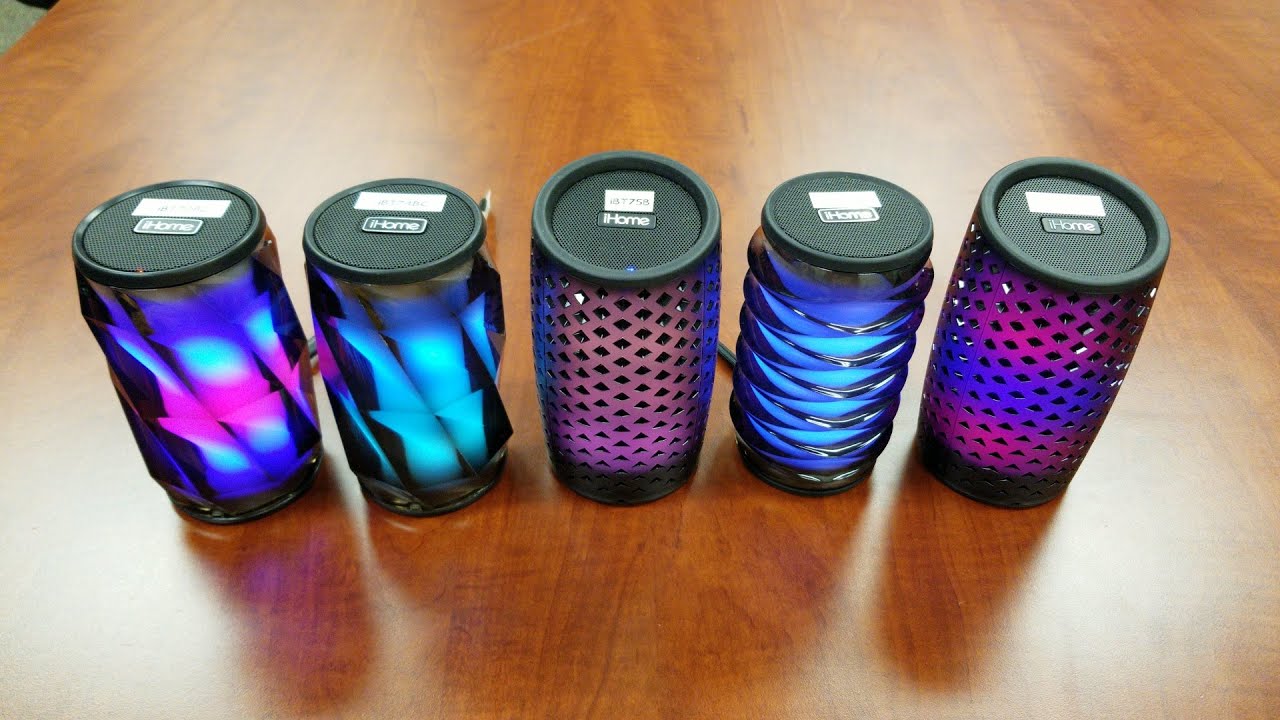
Image Source: i.ytimg.com
Getting Started: Your iHome Speaker and iPhone
Connecting your iHome speaker to your iPhone is a great way to enjoy your music, podcasts, and calls with improved sound quality. Whether you have a portable iHome Bluetooth speaker or a more advanced model, the basic pairing process is similar. This guide aims to make your iHome audio setup as smooth as possible.
What You’ll Need
- An iHome Speaker: Ensure it’s charged and powered on.
- Your iPhone: Make sure its Bluetooth is enabled.
- The iHome User Manual: While this guide covers common steps, your specific model might have unique features.
Turning On Your iHome Speaker
Every iHome speaker has a power button. This is usually clearly marked and easy to find. Press and hold it until you see an indicator light or hear a confirmation sound. This sound or light often signifies that the speaker is ready to be paired.
Enabling Bluetooth on Your iPhone
To establish an iHome wireless connection, your iPhone’s Bluetooth needs to be active.
- Open the Settings app on your iPhone.
- Tap on Bluetooth.
- Toggle the switch to On. Your iPhone will then start searching for nearby Bluetooth devices.
The Core Process: iHome Bluetooth Pairing
The heart of connecting your devices lies in the iHome Bluetooth pairing process. This is how your iPhone discovers and links with your iHome speaker.
Finding Your iHome Speaker in Bluetooth Settings
Once Bluetooth is on your iPhone, it will display a list of available devices. Your iHome speaker should appear in this list.
- Look for the iHome Name: The name will typically include “iHome” followed by the model number or a descriptive name (e.g., “iHome iBT77,” “iHome PlayBulb”).
- If it Doesn’t Appear: Don’t worry! Sometimes speakers need to be put into a specific pairing mode.
Putting Your iHome Speaker in Pairing Mode
Most iHome speakers enter pairing mode automatically when first turned on. If yours doesn’t, or if it has been previously paired with another device, you might need to manually activate pairing mode.
- Check the Speaker: Look for a dedicated Bluetooth button, often marked with the Bluetooth symbol ( a stylized ‘B’ ) or the word “Pair.”
- Press and Hold: Press and hold this button for a few seconds. You should hear a distinct sound or see a flashing light indicating it’s in pairing mode. Consult your iHome manual for the exact procedure for your model.
Connecting Your iPhone to the iHome Speaker
With your iHome speaker in pairing mode and your iPhone searching:
- In your iPhone’s Bluetooth settings, tap on the name of your iHome speaker when it appears.
- Your iPhone will attempt to connect. You might see a “Connecting…” status.
- Once successfully connected, the status will change to “Connected,” and your iHome speaker will likely emit a confirmation sound. The Bluetooth indicator light on the speaker should turn solid.
You have now successfully established an iHome wireless connection!
Exploring iHome Speaker Features with Your iPhone
Once paired, your iPhone becomes a powerful tool for controlling your iHome speaker and enjoying its full capabilities.
Playing Music and Audio
Simply open your favorite music app (like Apple Music, Spotify, or YouTube Music) on your iPhone and start playing. The audio should automatically route to your iHome speaker.
Adjusting Volume and Playback
- iPhone Controls: You can use the volume buttons on your iPhone or the on-screen volume slider in the playback controls of your music app.
- Speaker Controls: Most iHome speakers also have physical buttons for volume up/down, play/pause, and skip track.
Using Your iHome Speaker for Calls
Your iHome speaker likely has a built-in microphone, allowing you to use it for hands-free calls.
- Receiving Calls: When a call comes in, it should automatically pause your music. You can answer by tapping the call button on your iPhone or, in many cases, the play/pause button on your iHome speaker.
- Making Calls: You can initiate calls from your iPhone as usual. The audio will then play through the iHome speaker.
Advanced iHome Features and iPhone Control
Some iHome models offer more than just basic audio playback.
iHome Stereo Pairing (True Wireless Stereo – TWS)
Certain iHome speakers support iHome stereo pairing, allowing you to connect two identical iHome speakers for a true stereo sound experience.
Steps for iHome Stereo Pairing:
- Power On Both Speakers: Ensure both iHome speakers are powered on and in pairing mode.
- Initiate Pairing on One Speaker: On one of the speakers, press and hold the Bluetooth or pairing button for a longer duration (check your manual for the exact timing). This will initiate the TWS pairing process.
- Confirmation: You should hear a confirmation sound or see indicator lights change on both speakers, indicating they are now linked together. One speaker will typically act as the “master” and the other as the “slave.”
- Connect Your iPhone to the Master Speaker: On your iPhone, go to Bluetooth settings and connect to the “master” speaker (usually the one you initiated the TWS pairing on).
- Enjoy Stereo Sound: Your music will now play across both speakers, creating a wider soundstage.
iHome Apps for Enhanced Control
iHome often releases companion apps that unlock additional features and provide greater iHome iPhone control. These apps can offer:
- EQ Adjustments: Customize the sound profile to your liking.
- Alarm Clock Functions: Set alarms and choose audio sources.
- Speaker Management: Control multiple paired speakers, update firmware, and access advanced settings.
How to Find and Use iHome Apps:
- Check Your Manual: Your iHome user manual will often mention if a specific app is available and its name.
- App Store Search: Go to the App Store on your iPhone and search for “iHome” or the specific model number of your speaker.
- Download and Install: Download and install the relevant app.
- Follow App Instructions: Open the app and follow its on-screen instructions. It will likely guide you through connecting to your speaker via Bluetooth or Wi-Fi.
Troubleshooting Common iHome Speaker Issues
Even with easy setup, you might encounter hiccups. Here’s how to tackle common iHome speaker troubleshooting scenarios.
Issue: iHome Speaker Not Found in Bluetooth Settings
Possible Causes:
* Speaker is not in pairing mode.
* Speaker is too far from your iPhone.
* Speaker is already connected to another device.
* Bluetooth on your iPhone is not enabled.
Solutions:
* Re-enter Pairing Mode: Turn off the speaker, then turn it back on and press/hold the pairing button as described earlier.
* Reduce Distance: Move your iPhone closer to the iHome speaker.
* Disconnect Other Devices: If the speaker was previously paired with a tablet or computer, ensure those devices’ Bluetooth is turned off or they are disconnected from the speaker.
* Check iPhone Bluetooth: Double-check that Bluetooth is enabled in your iPhone’s settings.
Issue: Connection Drops or Audio Stutters
Possible Causes:
* Interference from other wireless devices (microwaves, Wi-Fi routers).
* Distance between iPhone and speaker.
* Low battery on either device.
* Outdated firmware on the speaker.
Solutions:
* Minimize Interference: Try moving the speaker and your iPhone away from other wireless devices.
* Stay Close: Keep your iPhone within a reasonable range of the speaker (typically up to 30 feet, but this can vary).
* Charge Devices: Ensure both your iHome speaker and iPhone have sufficient battery life.
* Update Firmware: If an iHome app is available, check for firmware updates for your speaker.
Issue: No Sound from the iHome Speaker
Possible Causes:
* Volume is too low on either the iPhone or the speaker.
* Incorrect audio output selected on iPhone (rare, but possible).
* Speaker is muted.
Solutions:
* Check Volumes: Turn up the volume on both your iPhone and the iHome speaker.
* Verify Output: On your iPhone, while music is playing, swipe down from the top right (or up from the bottom on older models) to access the Control Center. Tap the AirPlay icon (a triangle with circles above it) and ensure your iHome speaker is selected.
* Check Mute: Ensure the speaker’s mute function is not activated.
Issue: Cannot Pair iHome Speaker After Initial Connection
Possible Causes:
* The speaker still remembers a previous pairing.
Solutions:
* Forget Device on iPhone: Go to your iPhone’s Bluetooth settings, tap the ‘i’ next to your iHome speaker’s name, and select “Forget This Device.” Then, try the pairing process again from scratch.
* Reset iHome Speaker: Some iHome speakers have a reset button or a combination of buttons to reset them to factory defaults. Consult your manual for this procedure. This is an effective step for resolving persistent iHome device pairing issues.
Maintaining Your iHome Speaker
Proper care ensures your iHome wireless connection remains reliable.
Cleaning Your iHome Speaker
- Exterior: Use a soft, dry cloth to wipe down the speaker. For stubborn marks, use a slightly damp cloth with water only. Avoid harsh chemicals or abrasive materials.
- Grilles: Use a soft brush or compressed air to gently clean speaker grilles and remove dust.
Charging Your iHome Speaker
- Use the Correct Charger: Always use the charger that came with your iHome speaker or a certified compatible charger.
- Avoid Overcharging: While most modern devices have protection, it’s good practice to unplug the speaker once fully charged if you won’t be using it.
Frequently Asked Questions (FAQ)
Q1: How do I know if my iHome speaker supports stereo pairing?
A: Check your iHome speaker’s product description, packaging, or user manual. Look for terms like “True Wireless Stereo (TWS)” or mentions of pairing two speakers together.
Q2: Can I connect my iHome speaker to an Android phone?
A: Yes, the pairing process is largely the same for Android devices. Enable Bluetooth on your Android phone, put the iHome speaker in pairing mode, and select it from the available devices list in your Android’s Bluetooth settings.
Q3: How do I update the firmware on my iHome speaker?
A: Firmware updates are usually managed through a dedicated iHome app. Download the appropriate app from your phone’s app store, connect your speaker to the app, and follow the instructions for checking and installing updates.
Q4: My iHome speaker won’t turn on. What should I do?
A: Ensure the speaker is properly charged. Try a different power outlet or USB port if using a charging cable. If it still doesn’t turn on, contact iHome customer support.
Q5: Can I use my iHome speaker while it’s charging?
A: Yes, most iHome speakers can be used while they are charging, allowing for uninterrupted listening.
Q6: What is the range of my iHome Bluetooth speaker?
A: The Bluetooth range typically varies between 30 to 50 feet (9 to 15 meters) in open spaces without obstructions. Walls and other electronic devices can reduce this range.
Q7: How do I reset my iHome speaker to factory settings?
A: The method for resetting varies by model. Common methods include pressing and holding a specific button (like the power or Bluetooth button) for an extended period (10-15 seconds) or a combination of buttons. Always refer to your iHome user manual for the precise instructions for your model. Resetting can resolve persistent iHome device pairing glitches.
By following this comprehensive guide, you should be able to easily pair your iHome speaker to your iPhone and enjoy seamless wireless audio. Remember to consult your specific iHome model’s manual for any unique features or troubleshooting steps. Happy listening!